
Sanuj Bhatia / Android Authority
Add Android Authority on Google:
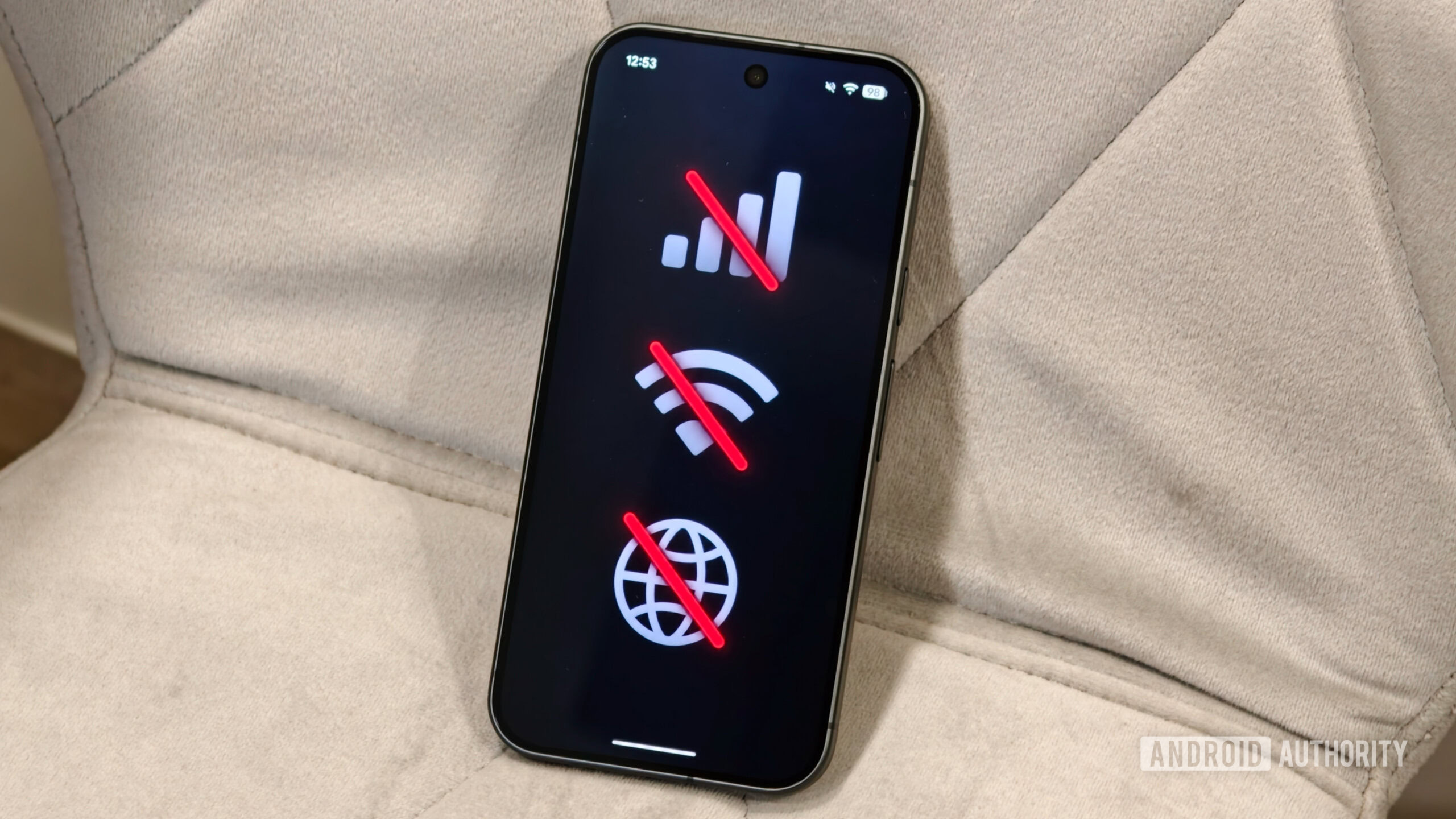
One of the biggest changes Google made with the Pixel 11 series is the switch to a new MediaTek modem. We’ve already seen that moving away from Samsung’s Exynos modem has delivered a noticeable generational improvement over the Pixel 10 series and brought Google’s connectivity much closer to the competition.
That said, not every Pixel 11 owner is having a smooth experience. Some users are reporting issues with mobile data and Wi-Fi connectivity on their Pixel 11 phones. While the number of reports appears smaller than what we’ve seen with previous generations, connectivity problems can still be incredibly frustrating.
So, if you’re experiencing signal or internet issues on your Pixel 11, here are some troubleshooting steps to try before you give up and return it.
What’s your biggest Pixel connectivity problem?
12 votes
Toggle Airplane mode on and off
Edgar Cervantes / Android Authority
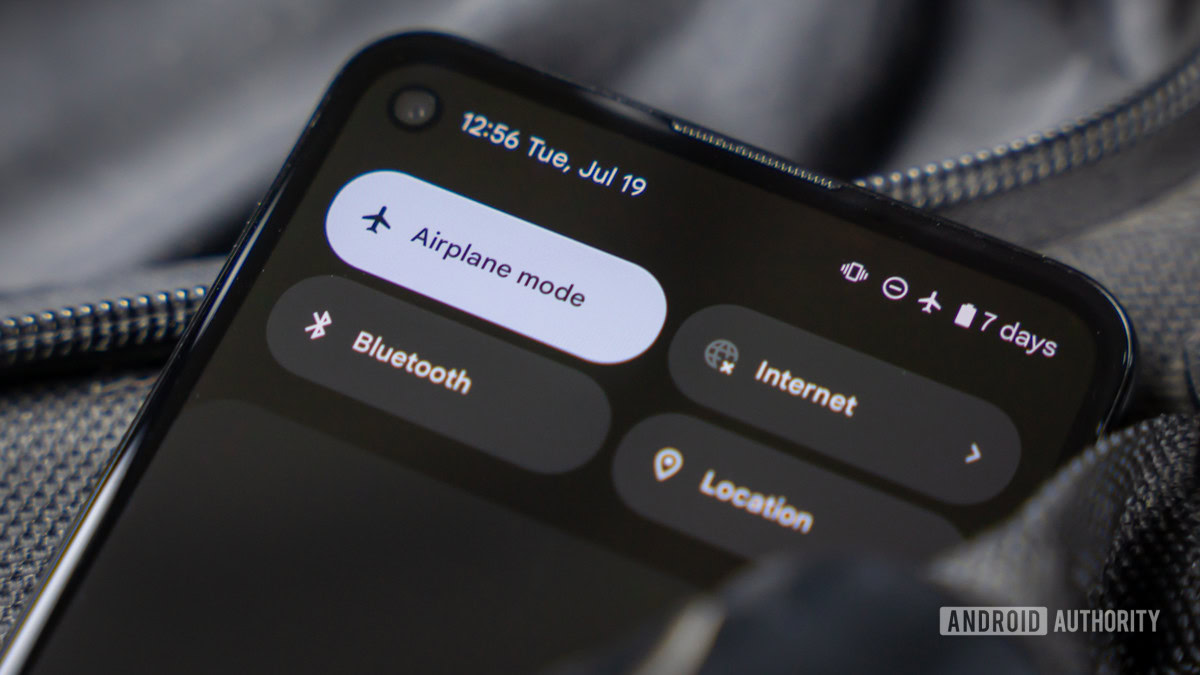
The easiest and most basic thing to try when your Pixel 11 is having connectivity issues is to quickly restart its wireless connections, and you can do that simply by toggling Airplane mode on and off. Enabling Airplane mode temporarily disconnects your Pixel from the cellular network and Wi-Fi. When you turn it off again, the phone reconnects to those networks from scratch, which can sometimes fix temporary signal or connectivity problems.
To toggle Airplane mode, open Quick Settings, tap the Airplane mode icon, wait a few seconds, and then tap it again. You can also head to Settings -> Network & internet -> Airplane mode and toggle it on and off from there.
Remove and reinsert your SIM
C. Scott Brown / Android Authority
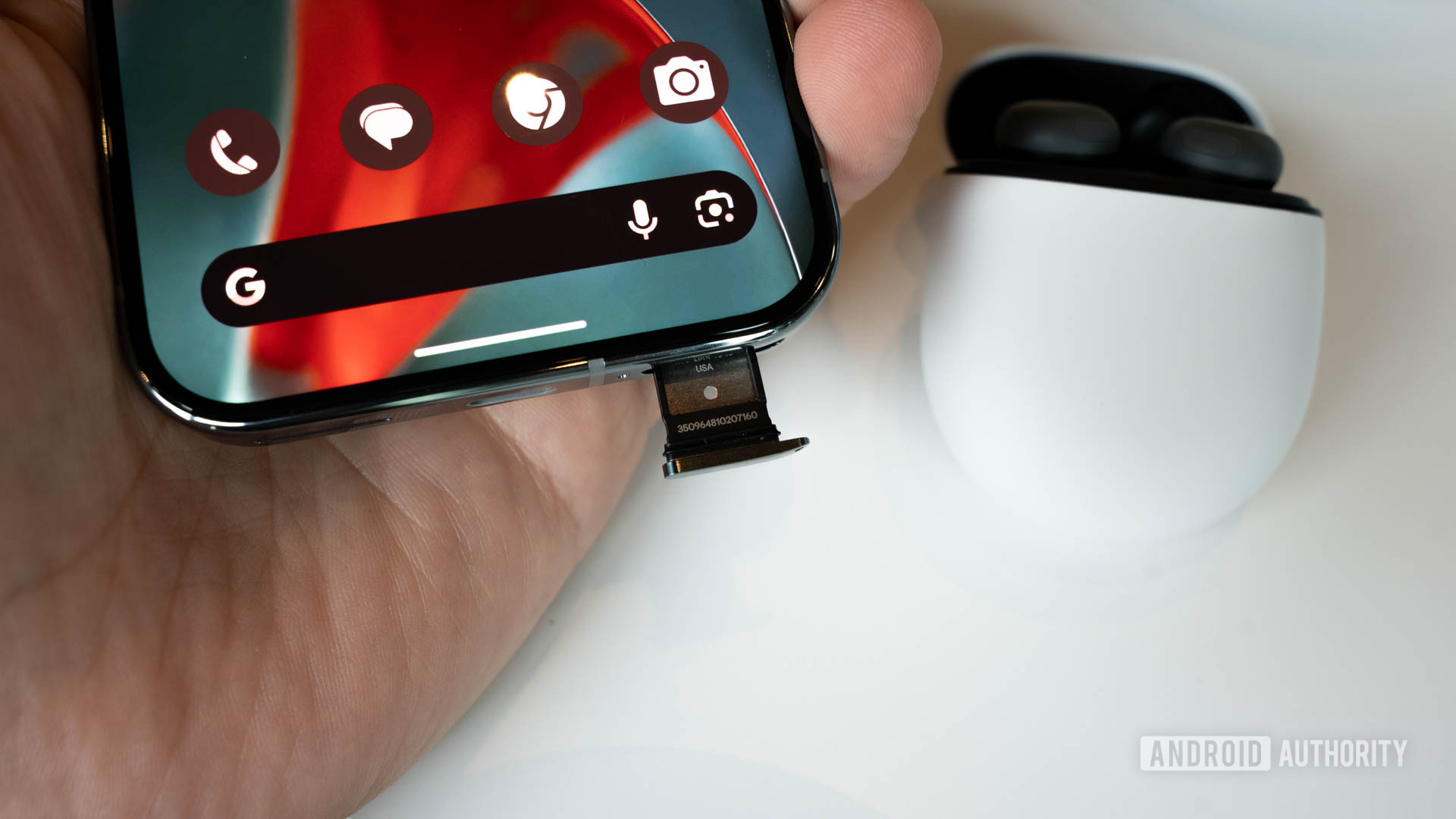
Another basic troubleshooting step is to manually remove the physical SIM card from your phone and check it for signs of damage or wear and tear. You can then insert it again and see if the connection improves.
If you’re using an eSIM instead, head to Settings -> Network & internet -> SIMs, select your eSIM, and temporarily disable it. Wait a few seconds before turning it back on. Sometimes these basic steps can help you determine whether the problem is with the phone’s modem or the SIM itself.
Temporarily disable Adaptive Connectivity
Sanuj Bhatia / Android Authority
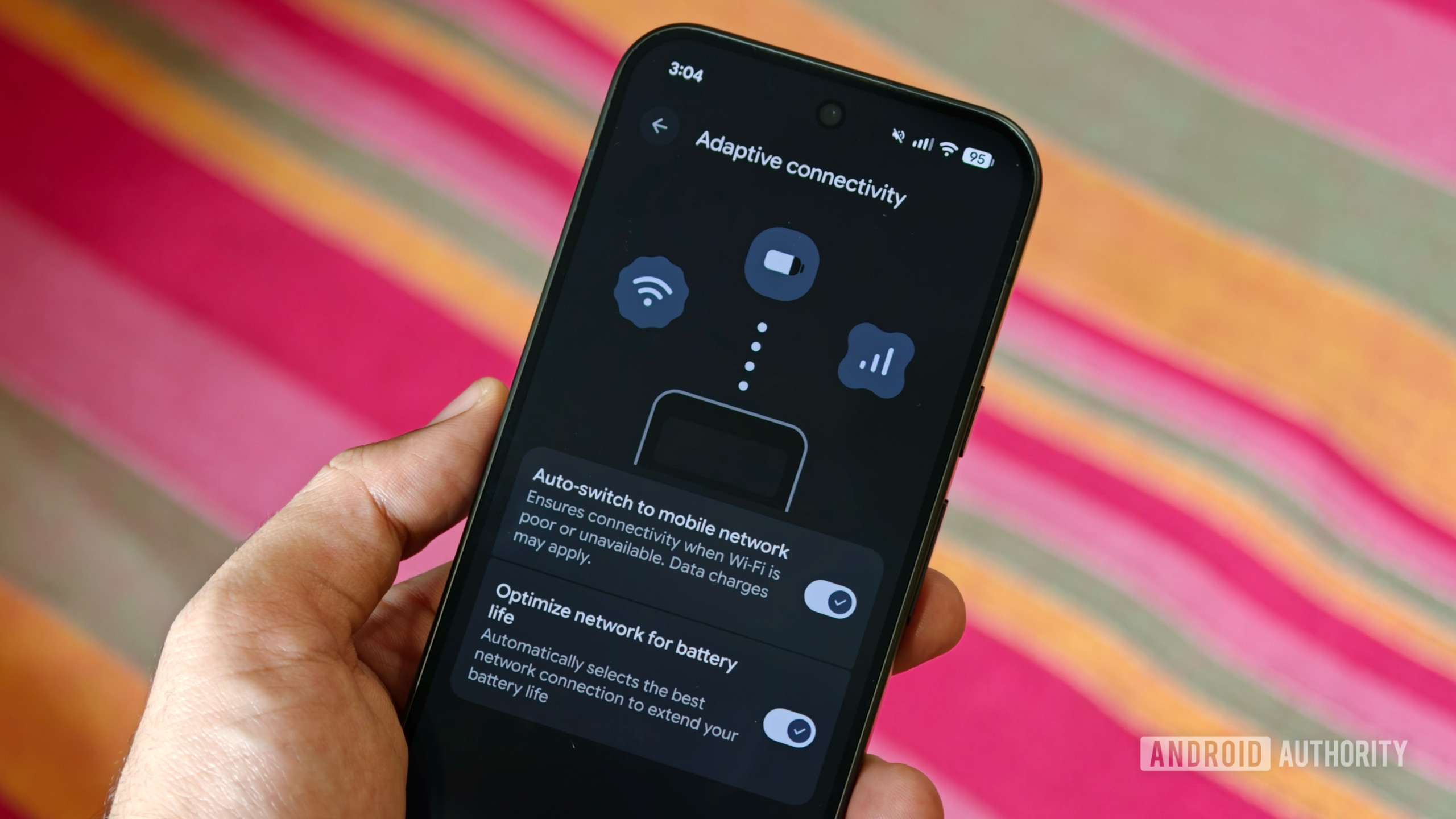
One of the smart connectivity features on Google Pixel phones is Adaptive Connectivity. This feature allows your Pixel to temporarily switch to cellular data when it detects that your Wi-Fi connection is slow or unavailable.
Another function of Adaptive Connectivity is optimizing your network connection for battery life. When your Pixel isn’t being actively used, it can automatically switch between 5G and 4G to reduce power consumption. But these automatic network changes can sometimes interfere with connectivity, so if you’re having signal issues, it’s worth temporarily disabling Adaptive Connectivity to see if that fixes the problem.
Adaptive Connectivity is useful, but automatic network switching can sometimes work against you.
To disable Adaptive Connectivity on your Pixel 11, head to Settings -> Network & internet -> Adaptive Connectivity, then turn off both Auto switch to mobile network and Optimize network for battery life.
Make sure data roaming is enabled
Sanuj Bhatia / Android Authority
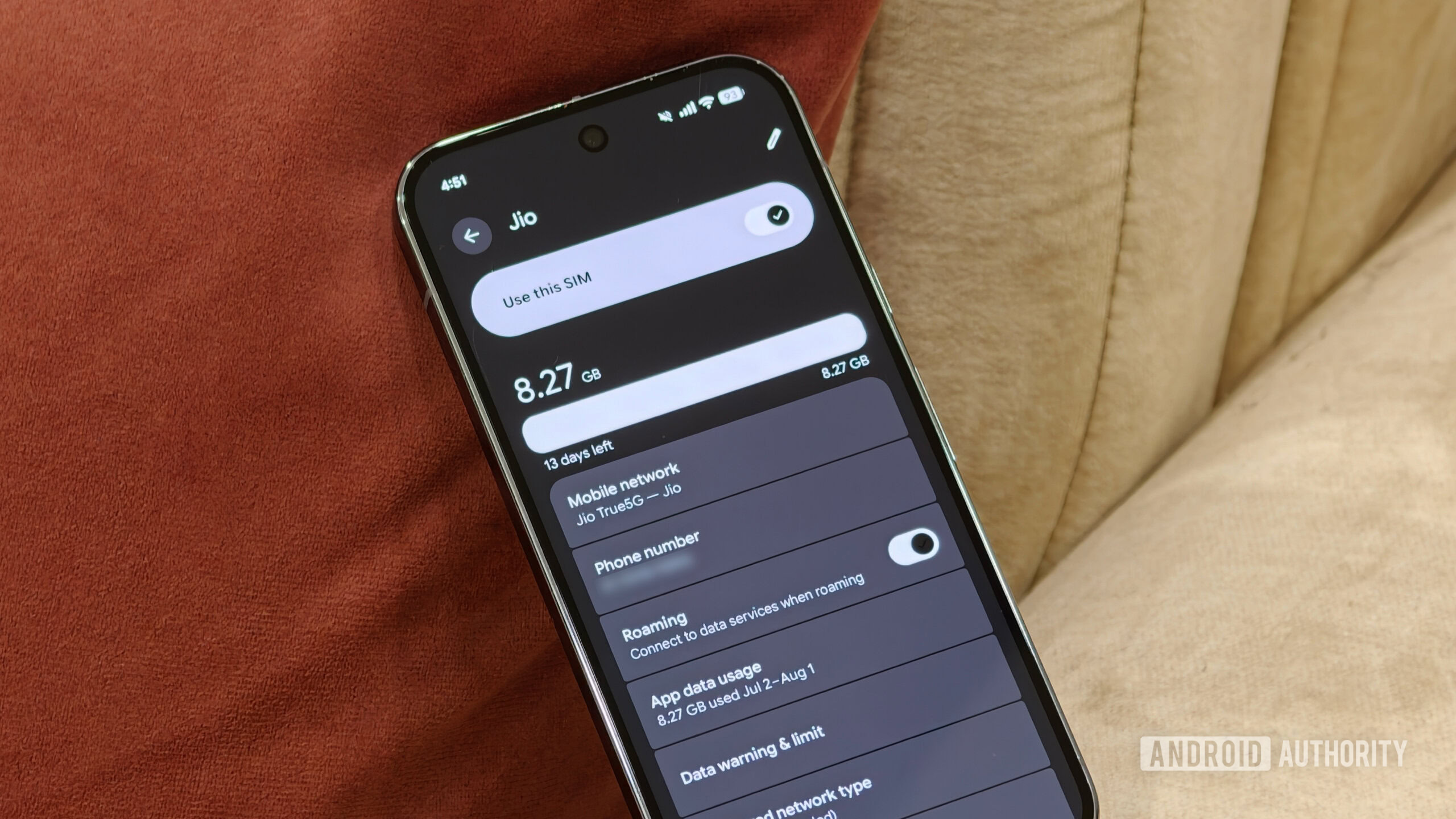
Before moving on to more drastic settings and tweaks, it’s worth checking some of the basic mobile data settings on your phone. If mobile internet suddenly isn’t working, especially when you’re traveling outside your home region, check whether data roaming is enabled. There’s a chance you’ve moved onto a roaming network while your phone isn’t allowed to use mobile data on it.
To check this, head to Settings -> Network & internet -> SIMs, select your SIM, and make sure Roaming is enabled. Keep in mind that your carrier may charge extra for roaming depending on your plan and location.
Check you haven’t hit your data limit
Sanuj Bhatia / Android Authority
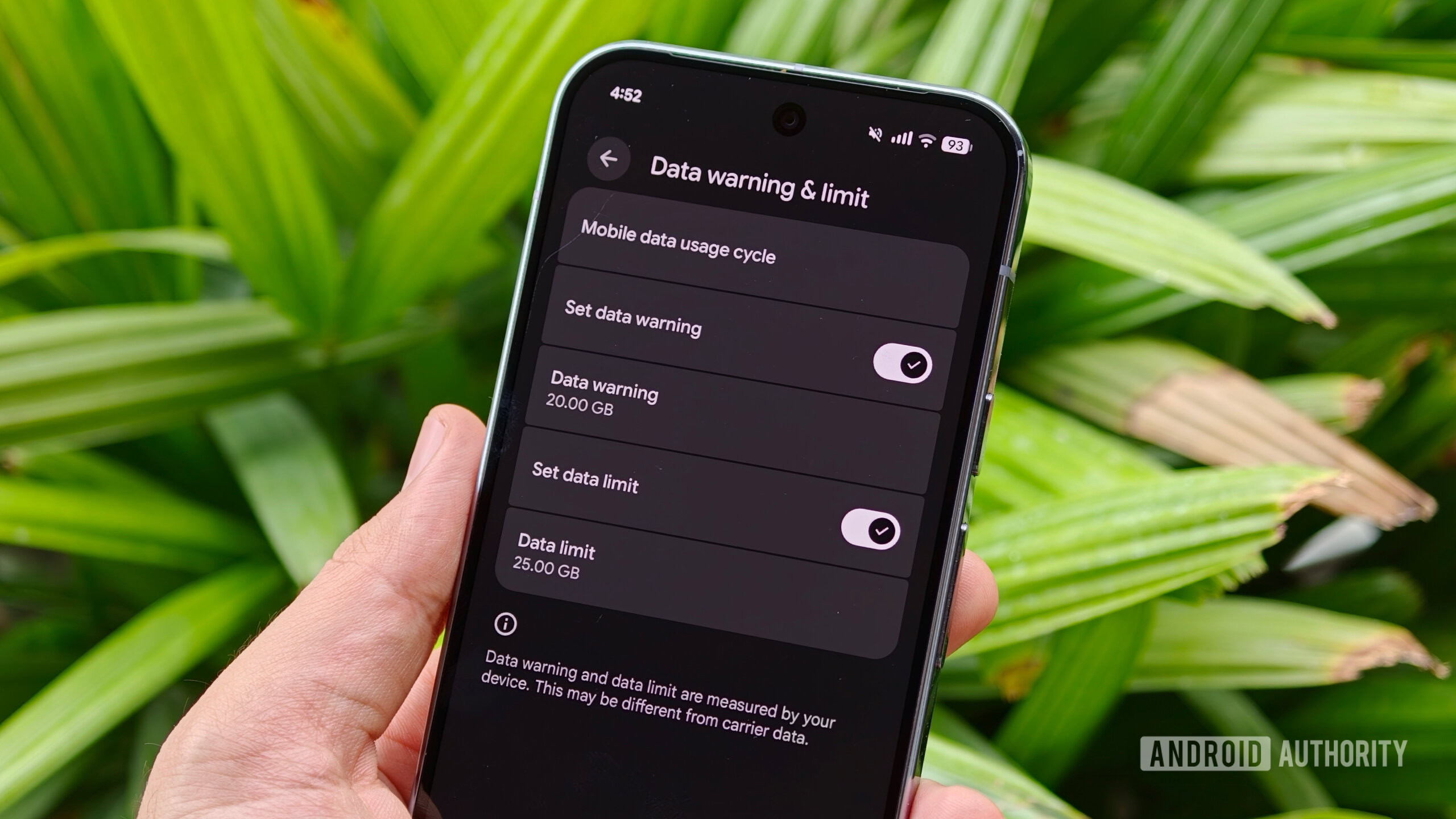
Another setting worth checking is your mobile data limit. Android can warn you after you’ve consumed a certain amount of mobile data, and you can also manually set a hard limit that stops mobile data once you’ve crossed it. There’s a chance you’ve previously set a limit and simply crossed it, which could explain why mobile internet has suddenly stopped working.
Head to Settings -> Network & internet -> SIMs, select your active SIM, and tap Data warning & limit. Check whether you have a data limit enabled and temporarily disable it to see if your internet connection comes back.
DNS settings can cause problems too
Sanuj Bhatia / Android Authority
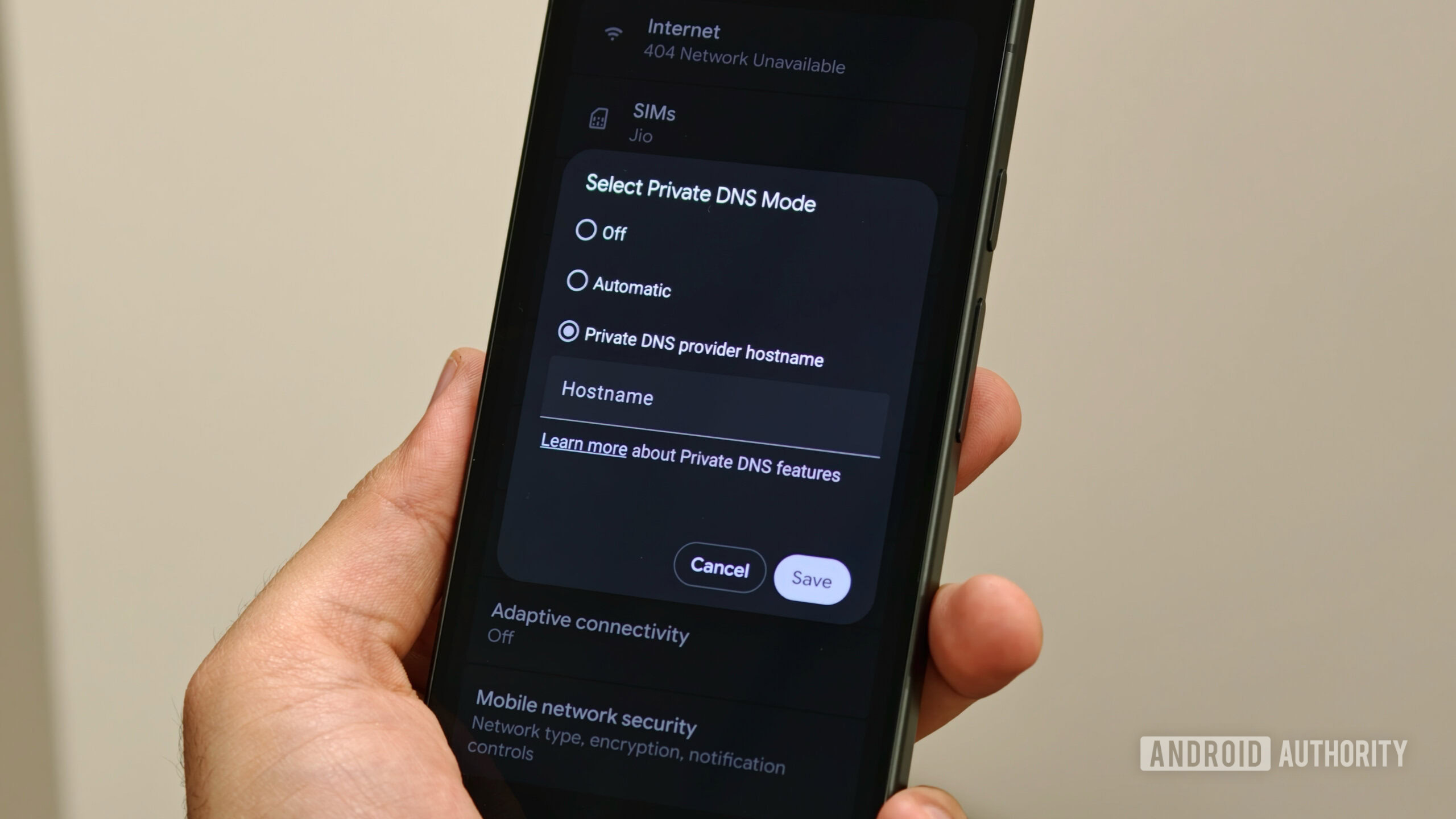
Another setting worth checking before moving on to the more drastic options is Private DNS. A lot of people change the DNS on their Android phones for things like additional privacy or ad blocking. But third-party DNS servers can occasionally go down or stop responding, making it seem like there’s something wrong with your internet connection.
A broken Private DNS can make perfectly good internet look completely dead.
To rule this out, head to Settings -> Network & internet -> Private DNS and temporarily set it to Off. If your internet starts working again, there’s a good chance the custom DNS was causing the problem.
Reset your mobile network settings
If everything else fails, one of the last things worth trying is resetting the mobile network settings on your Pixel 11. This essentially resets your cellular network settings and lets the phone start fresh, which can help if a setting or configuration is causing the connectivity problem.
To do this, head to Settings -> System -> Reset options -> Reset mobile network settings. You’ll then be asked to confirm the reset using your PIN or passcode. It’s worth noting that this will reset your mobile network-related settings, but your eSIMs won’t be deleted.
It’s also worth noting that Wi-Fi and Bluetooth settings are handled separately, so if you want to reset those as well, you’ll need to select Reset Bluetooth & Wi-Fi from the same Reset options menu.
If you’re still having connectivity problems after trying all of these steps, first make sure your Pixel 11 is running the latest available software, as Google may have fixed modem-related bugs in an update. If the problem persists even after that, there’s a chance you’re dealing with a carrier, SIM, or hardware-level issue that these software troubleshooting steps won’t fix.
Thank you for being part of our community. Read our Comment Policy before posting.