Anyone who lives in the Google ecosystem has probably used Gemini for a quick draft or a fast answer. (Or if you’re like me, you’ve been driven to your limit by the Google Docs popups encouraging you to use AI whenever your cursor strays too close to the bottom of the screen.) But a chat window is just the beginning of what Gemini can do. Its real power shows up when you connect it to the rest of your apps and let it do work on your behalf.
All of Gemini’s models are available in Zapier, so you can add Gemini-powered steps to your existing workflows. And Zapier is also live as a connector inside Gemini Enterprise, which means teams can securely access and take action in 9,000+ apps directly from the Gemini chat window, too.
Here’s how it works.
Table of contents:
Add Gemini’s brain to your existing workflows (AI by Zapier)
Zapier is built for automating complex workflows, and some of those workflows benefit from AI reasoning along the way. AI by Zapier lets you drop a Gemini step directly into a workflow wherever it’s useful, without a separate Google AI Studio account.
That means AI only shows up when it’s needed, which helps you save tokens (and avoid unnecessary hallucinations). For example, if you just need to log form responses into a spreadsheet, deterministic automation handles that fine on its own. You shouldn’t spend tokens on a step that doesn’t need a model. But when you’re classifying hundreds of support tickets a day, scanning competitor pages for keyword opportunities, or summarizing a pile of customer reviews, that’s when Gemini is worth bringing in.
Say your team collects feedback through a form throughout the week. Instead of someone manually reading the results, including the ones that aren’t valuable, you can build a Zap that triggers on new submissions. It can then send the response to a Gemini model with a prompt like “decide if this response needs attention from the product team,” then send any submissions that were flagged to Slack. Gemini only runs when there’s a new submission to check, and your team gets notified for anything that matters.
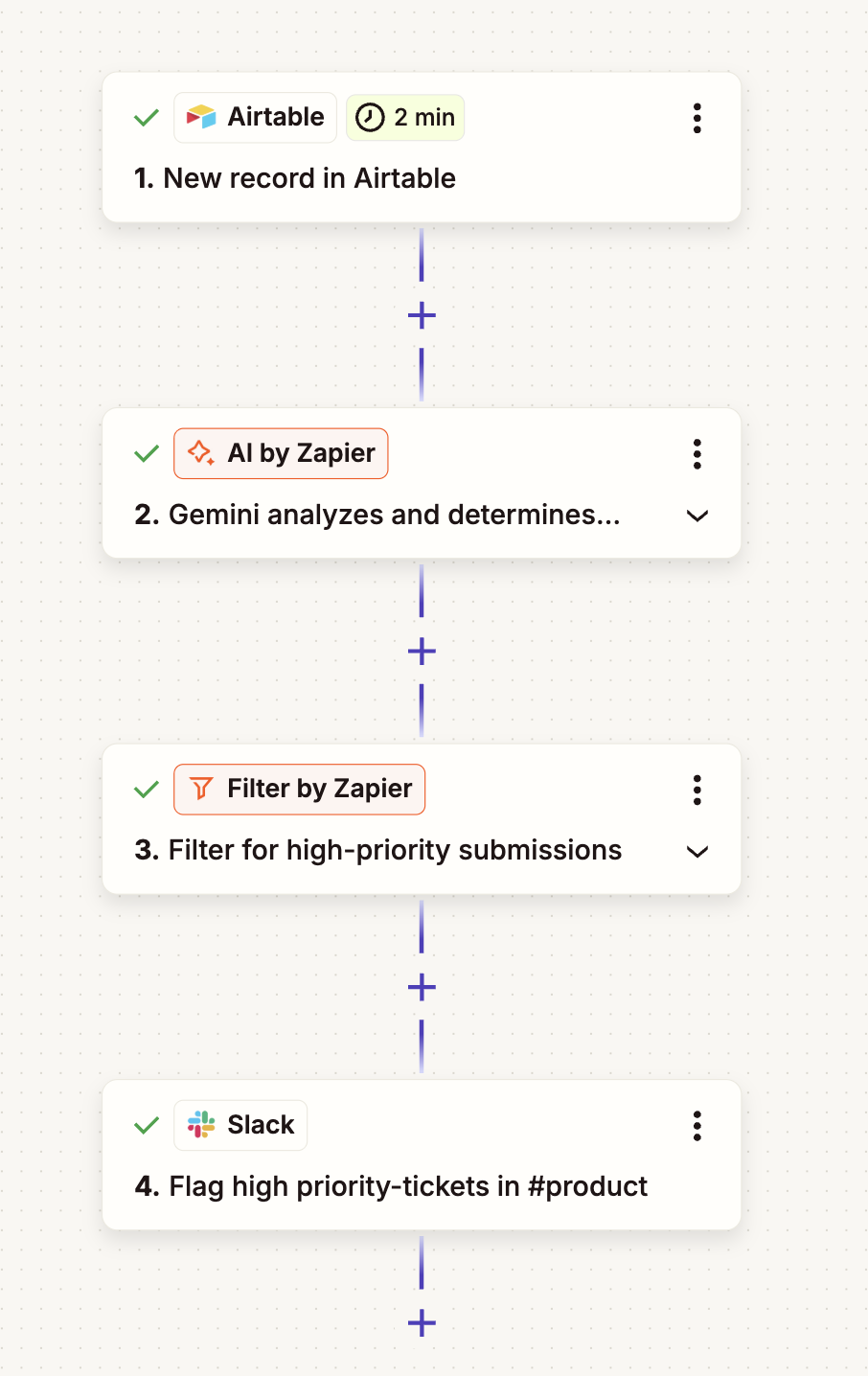
You stay in control of the step itself: just tune the prompt, attach knowledge sources, turn on agentic tool calling, and test until the output looks right.
Pick whichever Gemini model fits the job from a dropdown in the visual workflow editor, and the cost comes out of your Zapier task count instead of a separate Google bill.
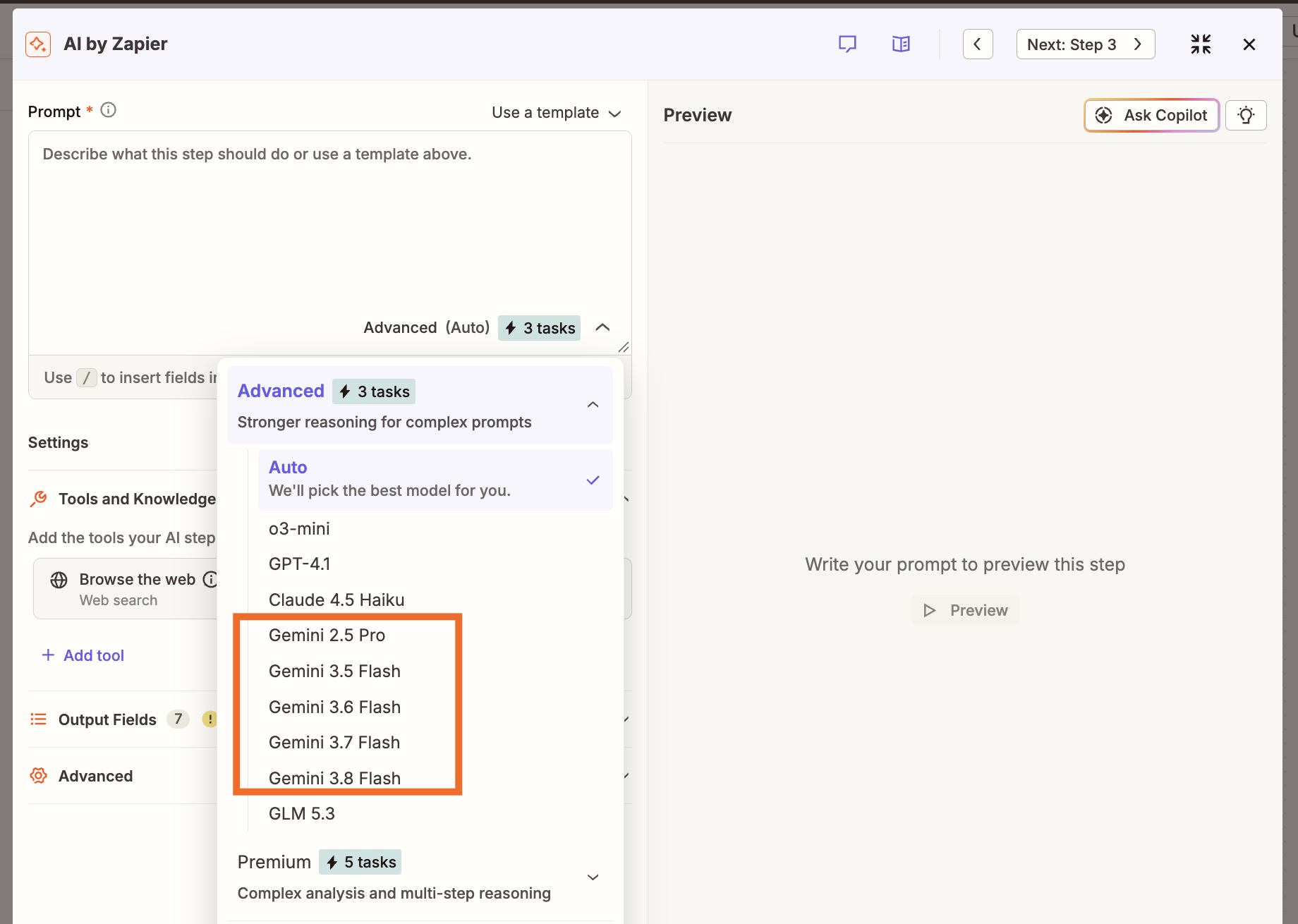
Here’s the current Gemini lineup in AI by Zapier. New models get added as soon as Google ships them. (You can also bring your own key [BYOK] if you want a Gemini model that isn’t built into AI by Zapier—in that case, you pay Google directly.)
|
Model |
AI by Zapier |
|---|---|
|
Gemini 2.5 Flash |
1 task |
|
Gemini 2.5 Flash Lite |
1 task |
|
Gemini 3.5 Flash Lite |
1 task |
|
Gemini 3.5 Flash |
3 tasks |
|
Gemini 3.6 Flash |
3 tasks |
|
Gemini 3.7 Flash |
3 tasks |
|
Gemini 3.8 Flash |
3 tasks |
|
Gemini 2.5 Pro |
3 tasks |
|
Gemini 3.1 Pro |
BYOK only |
If you’re not sure which model to reach for, check AutomationBench, Zapier’s benchmark for how AI models handle real business workflows. It’ll show you how Gemini stacks up against other models for the specific task you’re automating.
You can also use the dedicated Google AI Studio (Gemini) integration to add a Gemini step with your own Google account. But I recommend using AI by Zapier if you can, since you get prompt testing, knowledge sources, and agentic tool calling built in, and you can swap models later without rebuilding the Zap.
Gemini automation use cases
Here’s a look at how teams use AI by Zapier to bring Gemini into their workflows:
-
Triage high-volume requests. Send every new support ticket, inbound lead, or form submission to Gemini for classification and priority scoring, then route the output to the right queue, person, or channel automatically.
-
Summarize meetings and calls. When a new recording lands in Fathom, tl;dv, or Zoom, have Gemini pull out the key takeaways and action items, then post the summary to Slack so no one has to re-watch the call.
-
Analyze images and files. Gemini is trained on more than text. You can send it visual files, like a chart from a sales deck or a screenshot from a bug report, and get back a plain-language summary of what’s in it.
-
Draft and label emails. Route new Gmail messages to Gemini for a draft reply, a summary, or an automatic label, so your inbox sorts itself before you open it.
-
Research and tag content at scale. Pair Gemini with Zapier’s Chrome extension to parse competitor pages or articles as you browse, and let Gemini extract keywords, themes, or sentiment into a running Google Sheet or Table.
Automate workflows directly from Gemini (Zapier MCP)
Gemini Enterprise is Google’s admin-managed, enterprise edition of Gemini (previously known as Agentspace). If your organization has a Gemini Enterprise license, you can use Zapier’s connector to kick off automations from inside Gemini itself. It gives Gemini governed access to all 9,000+ apps in Zapier’s library, and you decide exactly which apps and actions it can touch.
Your admin can configure Gemini Enterprise connectors by following these steps:
-
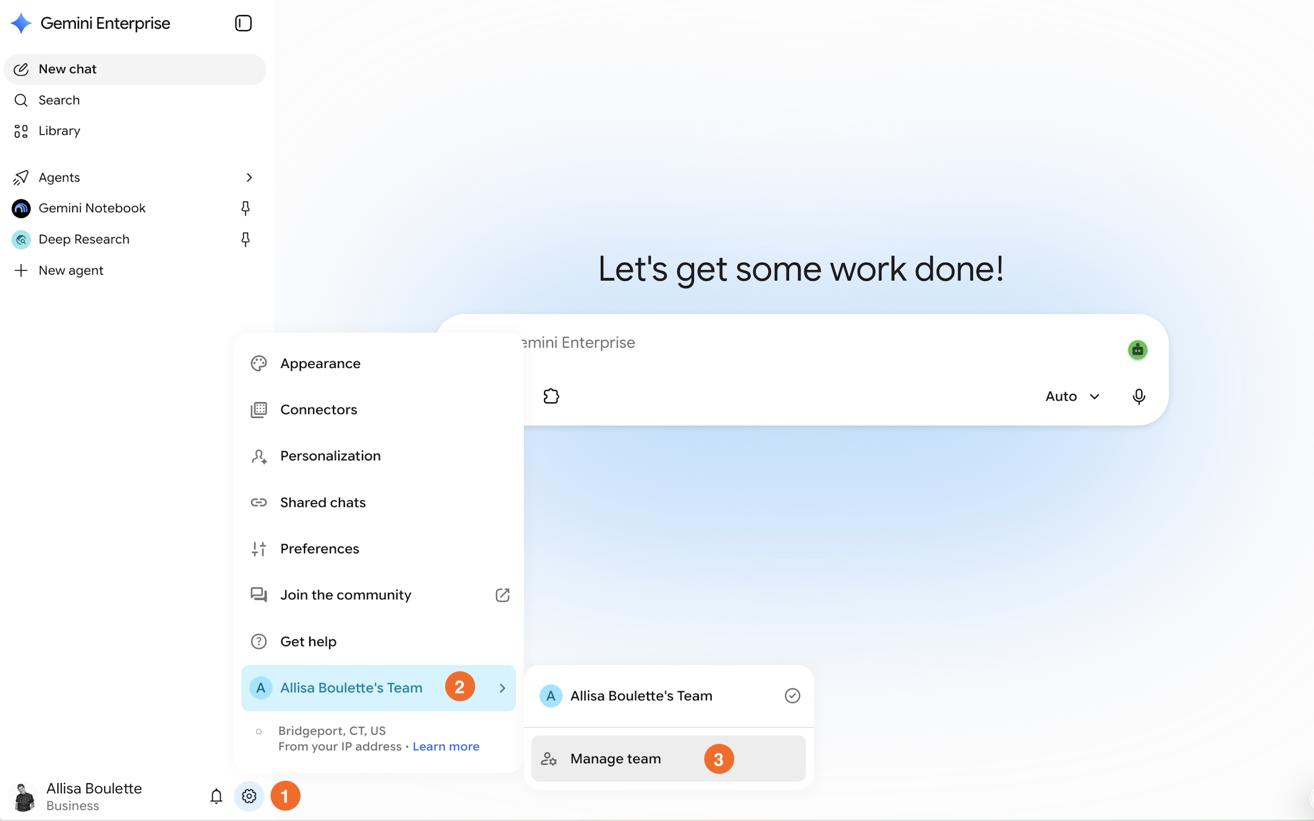
In the Gemini Enterprise app admin console, click Settings & help (cog icon).
-
Click your team name, then select Manage team.
-
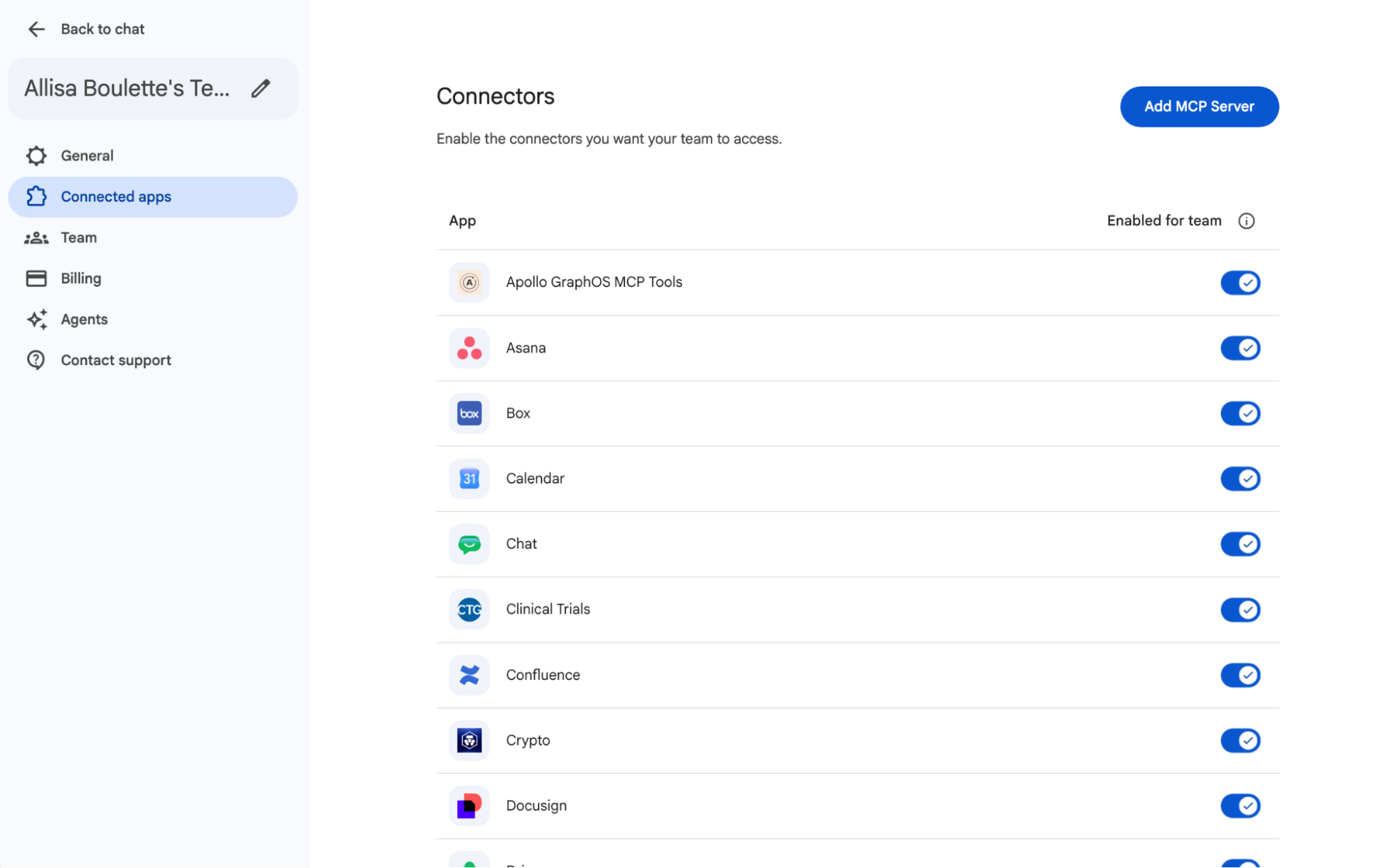
Click Connected apps.
-
Look for Zapier in the connector list and toggle it on. (If it’s not showing up yet, click Add MCP Server instead, and paste in your Zapier MCP URL.)
-
Follow the steps to authenticate through Zapier when prompted.
Once it’s on, anyone on your team can access Zapier’s app library through the Gemini Enterprise app interface, within whatever permissions your admin has set.
Here’s what you might ask Gemini to do once Zapier MCP is connected:
-
“Pull my last five HubSpot opportunities, calculate weighted pipeline, and send a summary to Slack.”
-
“Check my Gmail for anything I missed this morning, flag what needs a response, and add follow-ups to my Todoist list.”
-
“Pull the notes from yesterday’s customer call in our CRM and draft a recap email to the account team.”
None of that requires opening a separate app. It all runs from the Gemini chat window.
Zapier adds thousands of apps on top of Gemini Enterprise’s 100+ native connectors, all governed from one place. And that governance travels with you: Zapier works the same way across Gemini, Claude, ChatGPT, and any other agent harness that supports MCP, so you and your team can use whichever AI tool works best for each job.
Gemini automation FAQ
How do I automate Gemini with Zapier?
If you want AI reasoning inside an existing workflow, use AI by Zapier to add a Gemini step to a Zap. It runs automatically whenever the Zap triggers, and you pay in Zapier tasks instead of a Google bill. If you want to kick off work directly from the Gemini chat window, have your enterprise admin configure the Zapier connector in Gemini Enterprise. Then, just tell Gemini what you want done, like “pull my last five opportunities from HubSpot and send a summary to the team Slack channel.”
How do I connect Zapier to Gemini Enterprise via MCP?
Have an admin open the Gemini Enterprise admin console, go to Settings & help > Manage team > Connected apps, and either select Zapier from the connector list or add it manually with Add MCP Server using your Zapier MCP URL. Once an admin turns it on and sets permissions, everyone on the team can use it from the Gemini Enterprise interface.
Is Zapier MCP available on personal Gemini, or only Gemini Enterprise?
As of now, Zapier MCP is only live inside Gemini Enterprise, which is the paid, admin-managed edition built for organizations. Personal accounts can still use Gemini inside Zaps.
Automate Gemini with Zapier
Whether you want AI reasoning running helpfully in the background or you’d rather direct your tech stack from the Gemini chat window, Zapier gives you a governed way to bring Gemini into the rest of your work.
Either way, the connection runs through Zapier’s managed authentication, so Gemini never has to ask for an API key, your credentials stay safely governed in one place, and every action follows the same permissions you’d apply anywhere else in your stack.
Related reading:
This article was originally published in July 2024, and has also had contributions from Elena Alston and Steph Spector. The most recent update was in October 2026.